Viewing
View examples on the theta360.com site
Viewing video on your computer
Viewing video on your smartphone
STEP1
Starting the camera
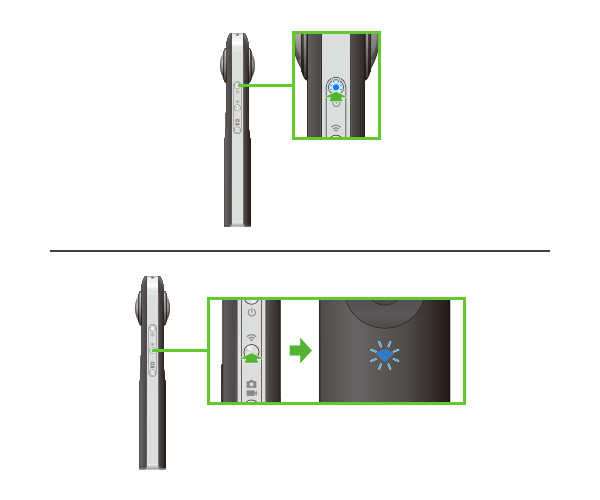
Press the power button to start the camera.
Confirm that the wireless lamp is flashing. If it is off, press the wireless button.
・ From the RICOH THETA app remote shooting screen, you can switch shooting modes with the still image button/video button.
STEP2
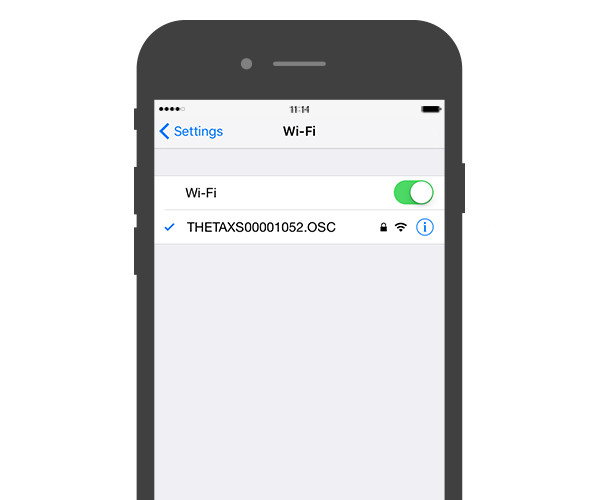
Connecting the camera to a smartphone
Select the SSID of the camera in the Wi-Fi settings of the smartphone and enter the serial number for password. The serial number printed on the base of the camera is the same as the SSID and password. After connecting, confirm that the camera's Wi-Fi status lamp has changed from flashing to lit.
STEP3
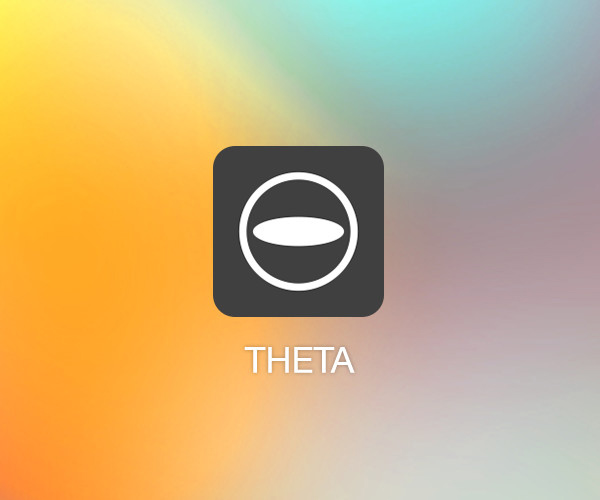
Starting the smartphone application
Start the RICOH THETA app on the smartphone, and then tap [App].
STEP4
Transferring videos
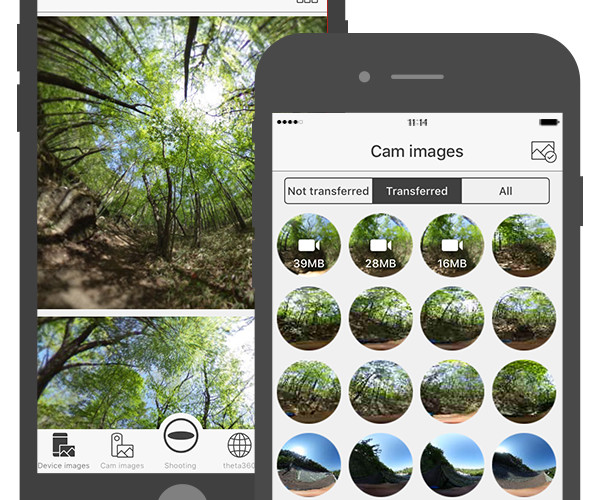
Tap [Cam images], and then start transfer by tapping [Thumbnail] for the video you want to transfer.
・ The camera mark and file size are displayed on the videos.
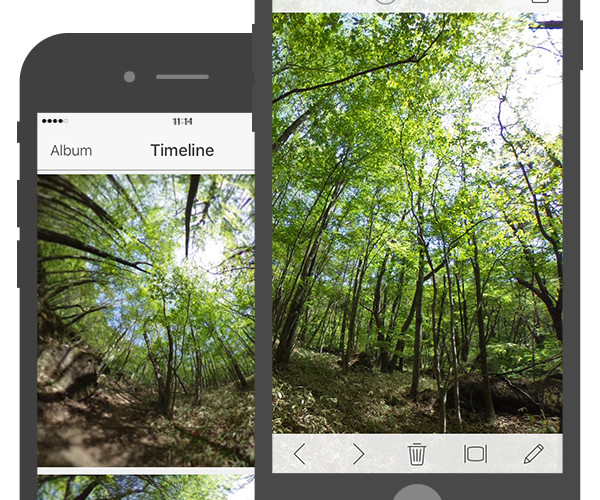
・ Videos play back automatically when transfer is complete so you can view them here.
STEP5
Viewing video
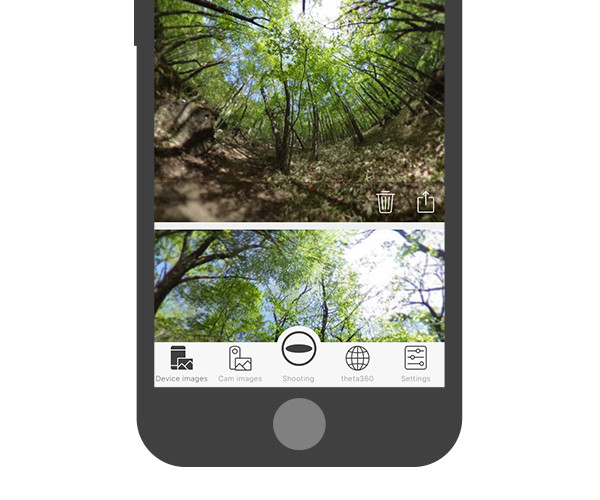
From the next time it can be viewed from the [Device images] .
* Note that if an image is deleted from the "Photos" App, it is also deleted from "Device images".
View examples on the theta360.com site
STEP1
Starting the smartphone application
Start the RICOH THETA App with your smartphone and tap "theta360".
STEP2
Viewing images
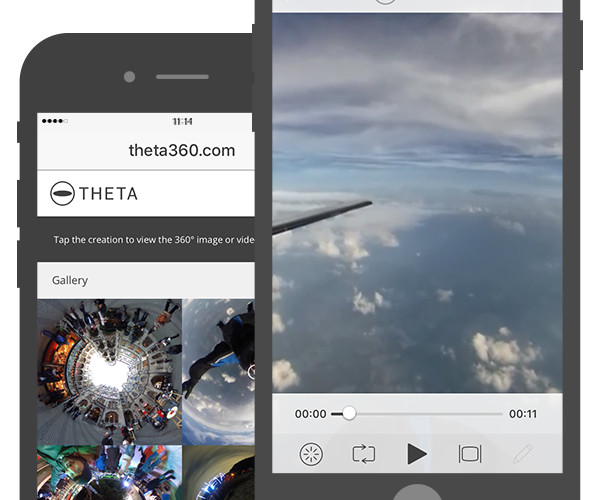
Tap the image you want to view and tap the "Viewing Video" button.
Viewing video on your computer
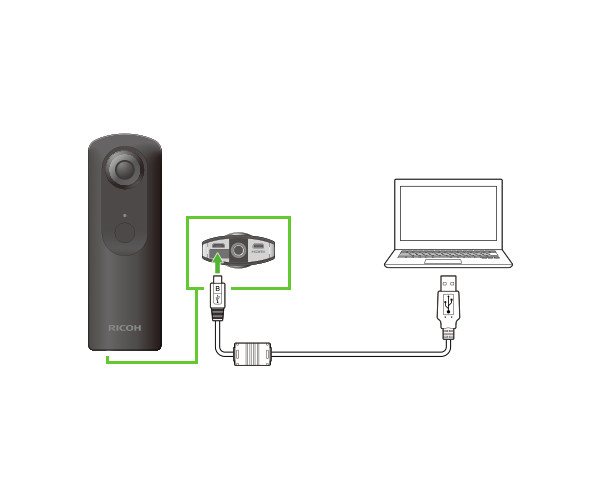
STEP1
Saving video onto your computer
Save video file (.mp4) onto your computer from the camera.
Windows: Follow the instructions on the screen display.Select [Open device and display].
Mac: Using the Photos App or the image capture, save the image to your Desktop, or other location.

STEP2
Selecting video
Start the computer application, and then drag and drop imported videos (.mp4).
*You can also launch it by selecting [File] >>[Open] in the menu
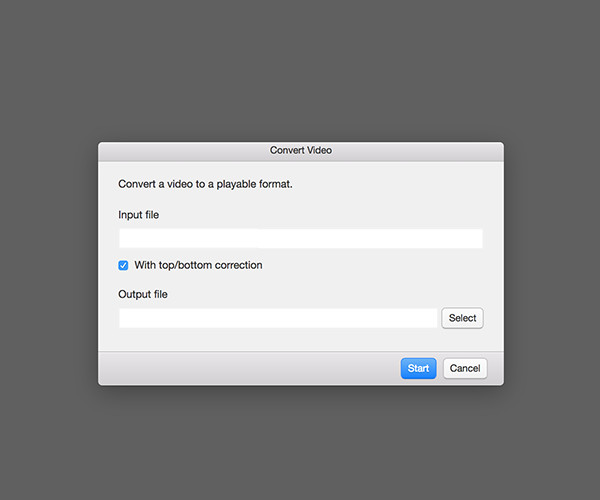
STEP3
Viewing video
Click [Select]. Select the folder to save the file and click [Start]. After conversion of the video file, playback starts.
*At the next playback, choose the video file (.mp4) converted by selecting [File]>>[Open]
The images of the smartphone app are from RICOH THETA for iPhone. They may partially differ from RICOH THETA for Android.